How to Edit Subscription in Your Organization
Subscriptions in the OfficeSeries application allow organizations to manage their service plans. Each subscription includes details such as the subscription name and associated services. This guide outlines the process for updating and editing subscription information within the OfficeSeries application.
Understand more about Subscription Management in OfficeSeries by referring to our OfficeSeries Subscriptions Guide.
Prerequisites
To ensure a smooth process for updating subscription details in OfficeSeries, you must have the necessary administrative rights to edit subscription settings. Additionally, you should be aware of your organization's policies regarding subscription management. Depending on your role, this functionality is accessible only if you have the appropriate permissions and access rights.
For detailed guidelines on security and permissions, refer to our Subscription Security And Permissions documentation.
How to Edit Subscription Details in your Organization
Follow these steps to edit/update subscription information within the OfficeSeries application:
1. Log into the OfficeSeries application
Ensure you are logged in with the appropriate administrative credentials. Only users with the necessary permissions can make changes to subscription details.
2. Navigate to the "Subscriptions" section from the main menu
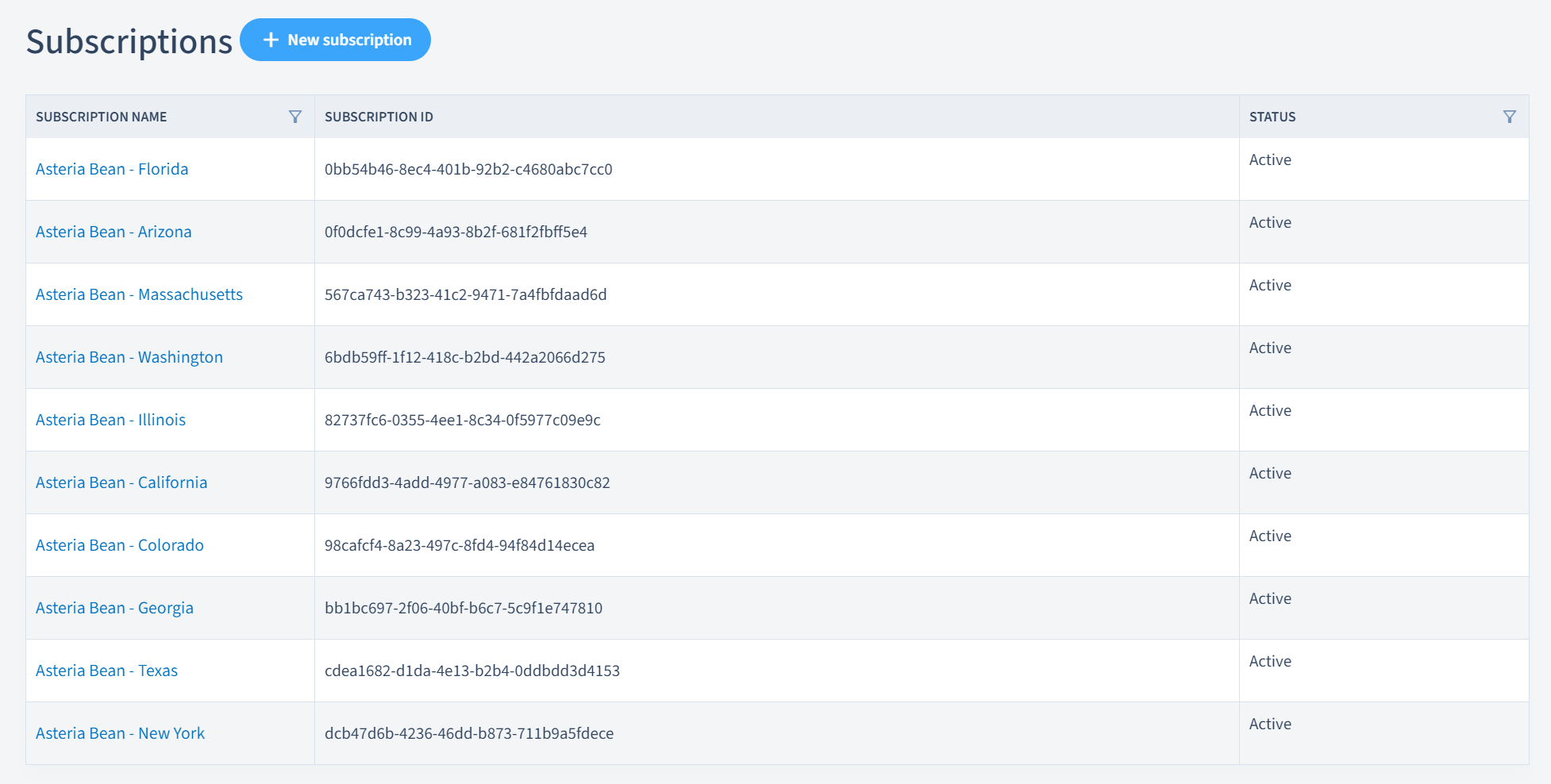
From the main menu, locate and click on the "Subscriptions" section. This will display a list of all available subscriptions within your organization.
3. Select the subscription you wish to update
Browse through the list and click on the specific subscription that you wish update. Ensure you select the correct subscription to avoid making changes to the wrong subscription. This will open the subscription details page, which displays information relevant to the subscription.
Subscription Menu
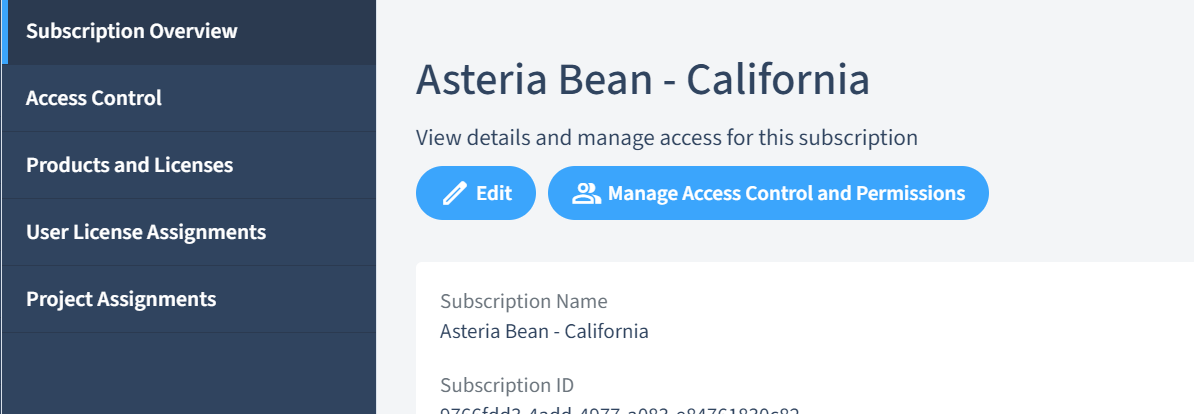
Upon clicking on the subscription, you will see a menu with various options related to the subscription such as the following:
Subscription Overview
Access Control
Products and Licenses
User License Assignments
Project Assignments
4. Click "Edit Subscription"
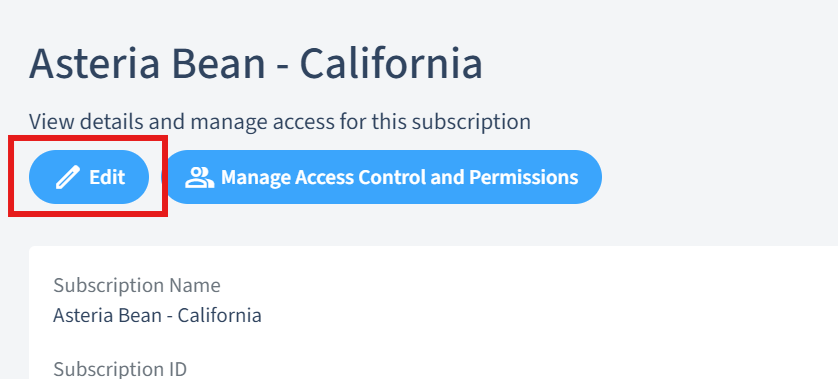
On the subscription details page, find and click the "Edit Subscription" button. This will enable the fields for editing.
5. Update the subscription details
Modify the necessary fields such as the "Subscription Name," associated services, and any other relevant information. Ensure that all changes comply with your organization's policies and requirements.
6. Click "Save" to apply the changes
After making the necessary updates, click the "Save" button to apply the changes. This will update the subscription information and reflect the new details.
Discarding Changes
If you decide against making any changes, click the "Cancel" button. This action will discard any modifications and return you to the subscription overview page.
Summary
This document has provided a detailed guide on how to update subscription information within the OfficeSeries application. Remember to verify your permissions and follow your organization's policies when making changes to subscription details.